
Help Center

Getting Started
Trading
My Account
Mutual Funds
IPOs
Stock SIP
Gold
NPS
Government Securities
Fixed Deposits
Insurance
Loan
Smallcase
DartStock
Upstox API
NCD
US Stocks
How to submit a bank statement automatically for activating commodities (MCX) on Upstox?
Kindly follow the below steps to submit your bank statement automatically.
Step 1: Login to the Upstox app using your 6-digit PIN or Biometrics.
Step 2: Click on ‘Upstox Icon’ at the top left corner of the screen.
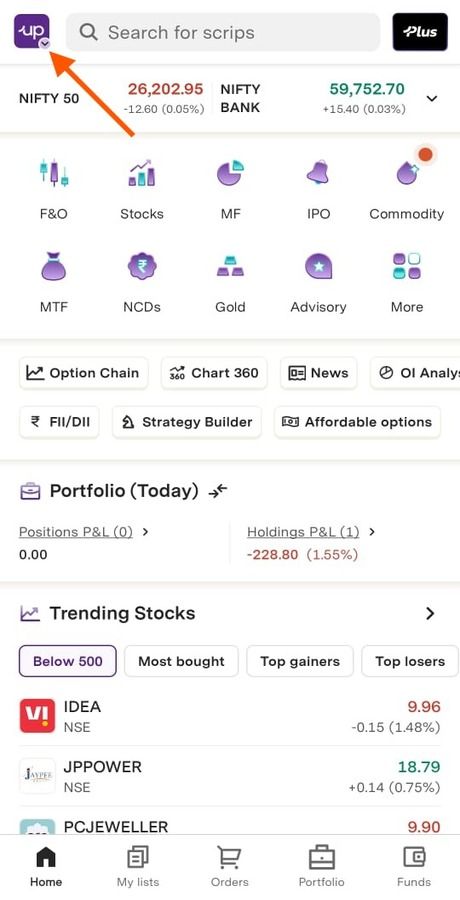
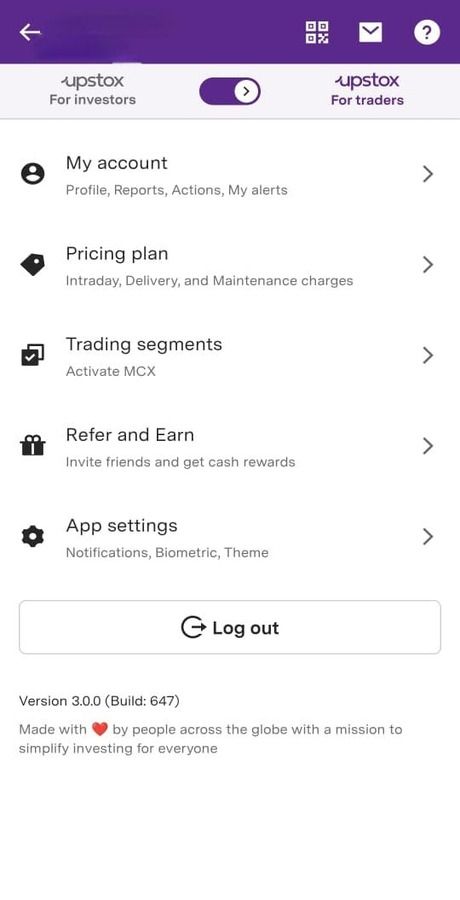
Step 3: Click on ‘Trading Segments’.
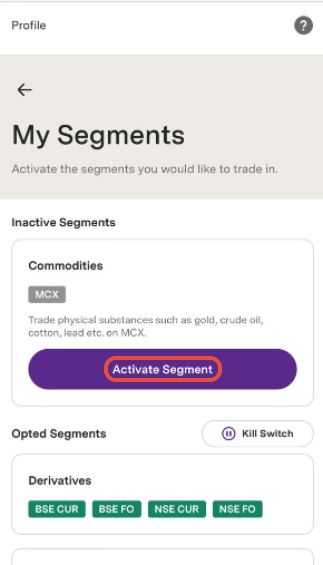
Step 4: Click on ‘Activate Segment’ for the segment you want to activate.
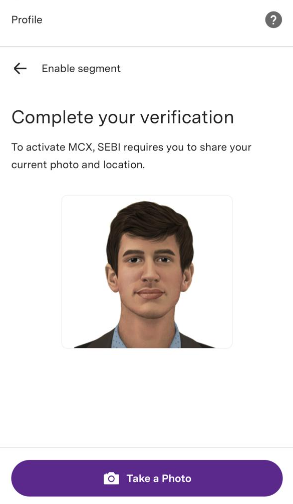
Step 5: Allow camera access to take your selfie.
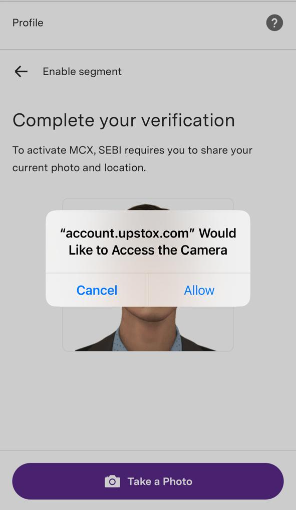
Step 6: For MCX, you will also be asked to upload a live photo.
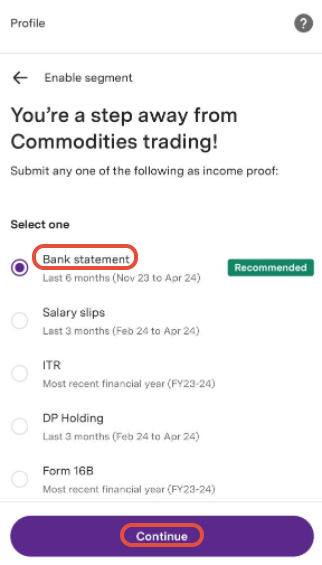
Step 7: Select ‘Bank statement’ and then click on ‘Continue’.
Step 8: Select your ‘Primary Bank’ listed with Upstox.Then click on ‘Continue’.
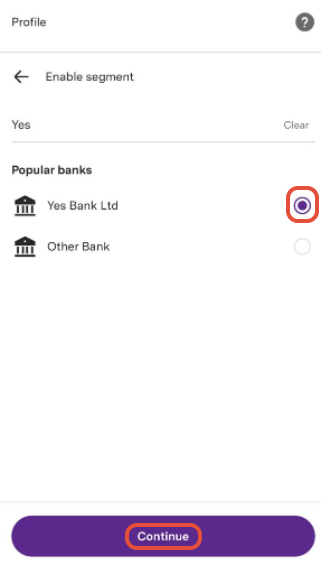
Note: Your bank statement should cover the last 6 months with at least 1 transaction of ₹5000 or more.
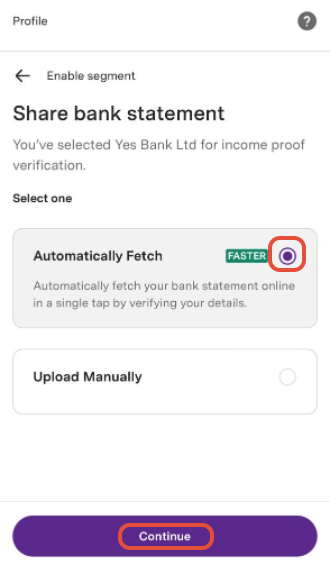
Step 9: Select ‘Automatically fetch’ and then click on ‘Continue’.
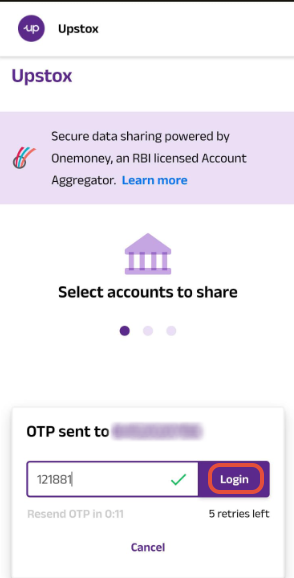
Step 10: Enter the 6-digit OTP sent to your bank registered mobile number, then click on ‘login’.
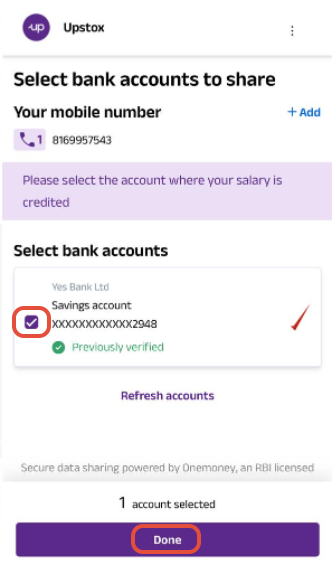
Step 11: Select the bank account and click on ‘Done’.
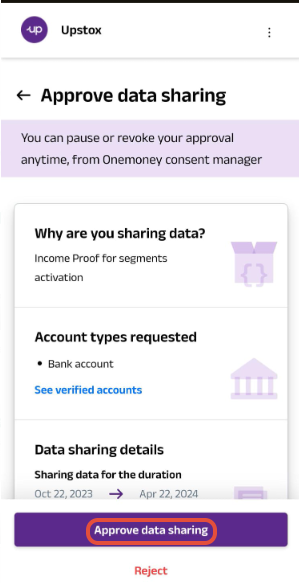
Step 12: Click on ‘Approve data sharing’ to share a statement from the bank to Upstox.
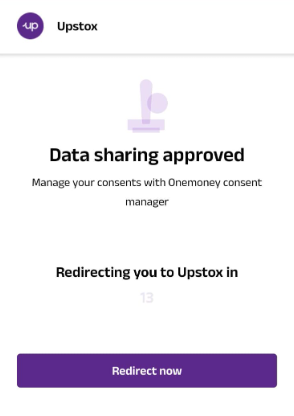
Step 13: Once approved, your bank statement data will be shared with Upstox shortly.
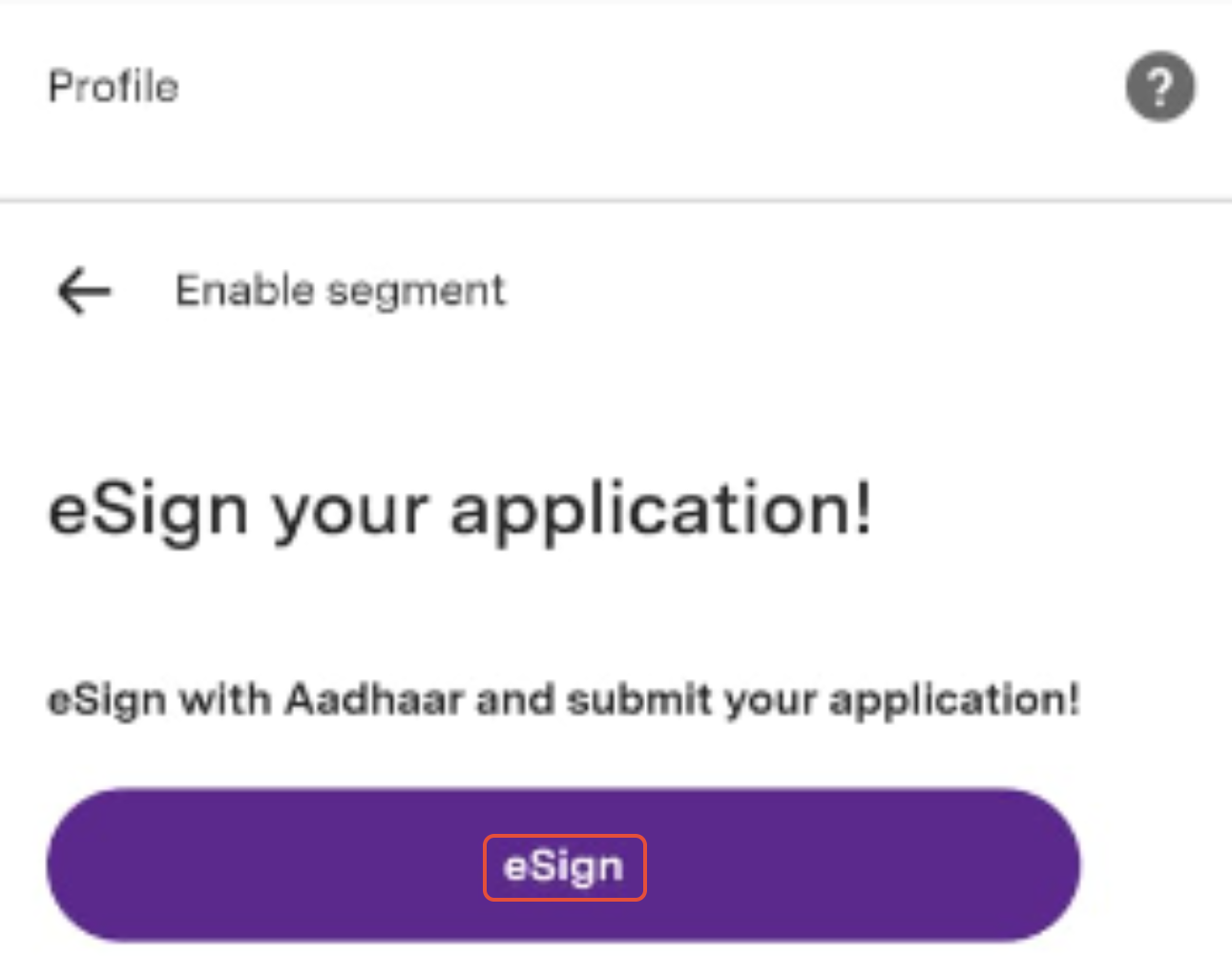
Step 14: eSign with Aadhaar and submit your application.
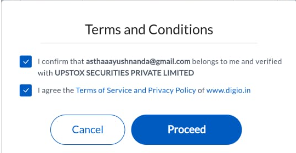
Step 15: You will now be redirected to the confirmation page, where you have to click on the checkbox and accept the ‘Terms and Conditions’ and click on ‘Proceed’.
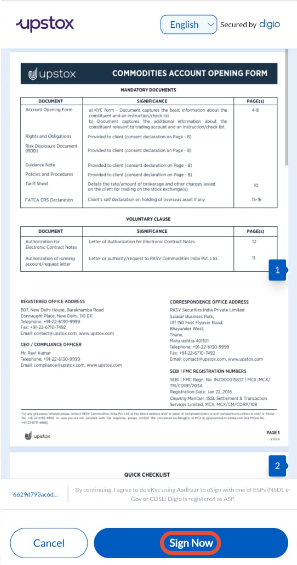
Step 16: Now you will be redirected to the confirmation page, verify the details and click on ‘Sign Now’.
Step 17: Enter your Aadhaar/VID.
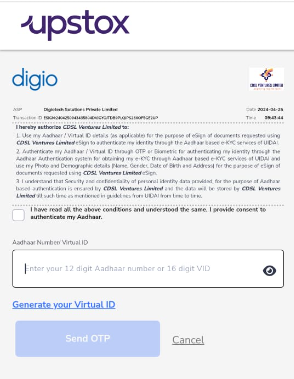
Step 18: Enter the OTP sent to your Aadhaar registered mobile number.
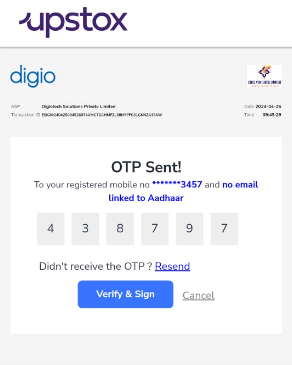
Step 19: Your request to enable this segment has been submitted successfully.
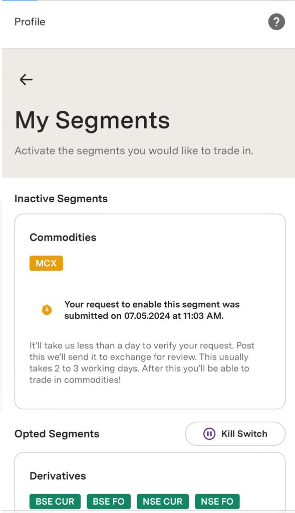
Note:
- This usually takes 2 to 3 working days. After this, you'll be able to trade in commodities.
- To take your bank statements directly from the bank, we have tied up with a third-party vendor application Onemoney. These apps will not store your data.
Additional Notes:
In the following two cases, the eSign step is not needed. You just need to upload the necessary income proof and your request will be placed:
- If you have submitted your consent to activate MCX while opening your Upstox account.
- If your segment activation request has been rejected previously and you wish to resubmit your request.
Click here to view the income proof documents that are required for activating your segment.
Trade with Upstox
Want to open a Demat account?
Open a FREE Demat and Trading account to invest in Stocks, Mutual Funds, IPOs and more.
By signing up you agree to receive transaction updates on Whatsapp. You may also receive a call from an Upstox representative to help you with the account opening process.
Upstox Community




Upstox Community
| Topic | Replies | Views | Activity | |
|---|---|---|---|---|
| 3 | 2.7K | Apr 2025 | |
| 0 | 1.1K | Apr 2025 | |
| 0 | 642 | Feb 2025 | |
| 1 | 1.2K | Apr 2025 | |
| 1 | 420 | May 2025 |